NRA Manager
The NRA Manager operates one level closer to the ground than the NRA Admin. Where the Admin sets up and governs the NRA's presence, you run the day-to-day work of a specific team: keeping the roster current, making sure everyone's training is on track, assigning the right training to the right people, reviewing feedback, and keeping tabs on each member's learning record.
View the SEARN-Wide Training Catalogue
The story: Before deciding what your team needs, you check what training already exists across the whole network.
Goal: See network-wide training coverage.
Navigation: Left Navigation → SEARN Training Catalogue
- Click SEARN Training Catalogue in the left navigation and make sure the view is scoped to SEARN-wide.
- Filter by Competency Domain to see what is already covered.
Outcome
You have a clear picture of network-wide coverage before deciding what your team needs.
View Your NRA-Specific Training Catalogue
The story: Now you narrow the view to your own authority, checking whether your team has trainings mapped against every competency that matters locally.
Goal: See your NRA's own training coverage.
Navigation: Left Navigation → NRA-Specific Training Catalogue
- Click NRA-Specific Training Catalogue in the left navigation.
- Review the trainings mapped against the NRA-specific competency framework.
Outcome
You know exactly which local competencies still need a training.
Add / Update Team Members
The story: You maintain the roster of people on your team, keeping details and involvement current as the team evolves.
Goal: Keep your team roster current.
Navigation: Left Navigation → My Team
- Click My Team in the left navigation.
- Click + Add Team Member and select a user from the dropdown to add them.
- Select an existing member to update or remove them.
- Save the changes.
Outcome
Your team roster accurately reflects who is currently involved and in what capacity.
Assign Training to a Team Member
The story: With gaps identified and trainings available, you assign specific trainings to specific team members based on their role and needs.
Goal: Put the right training in a team member's queue.
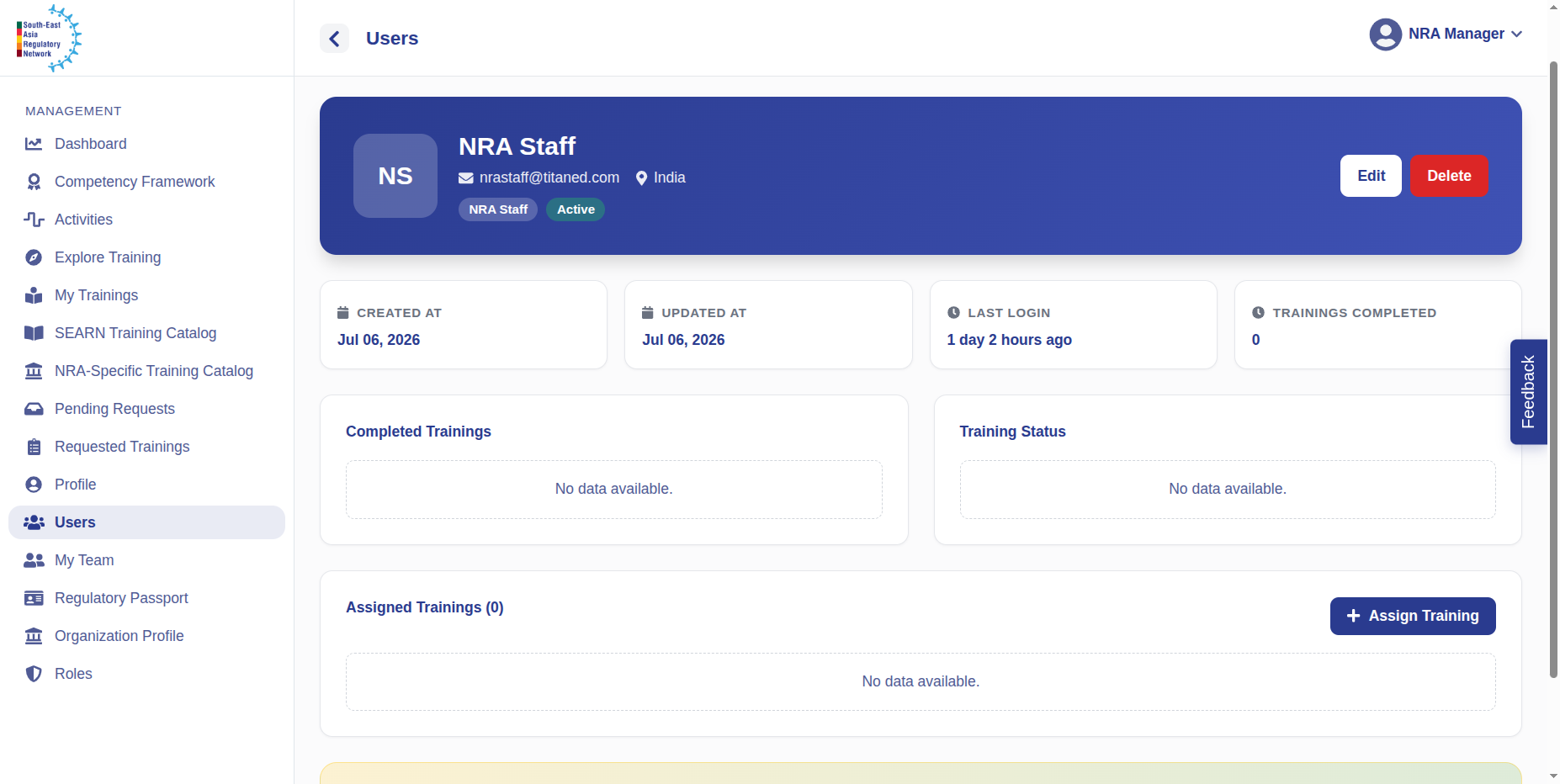
Navigation: Left Navigation → Users
- Click Users in the left navigation.
- Select a team member from the list.
- Click Assign Training.
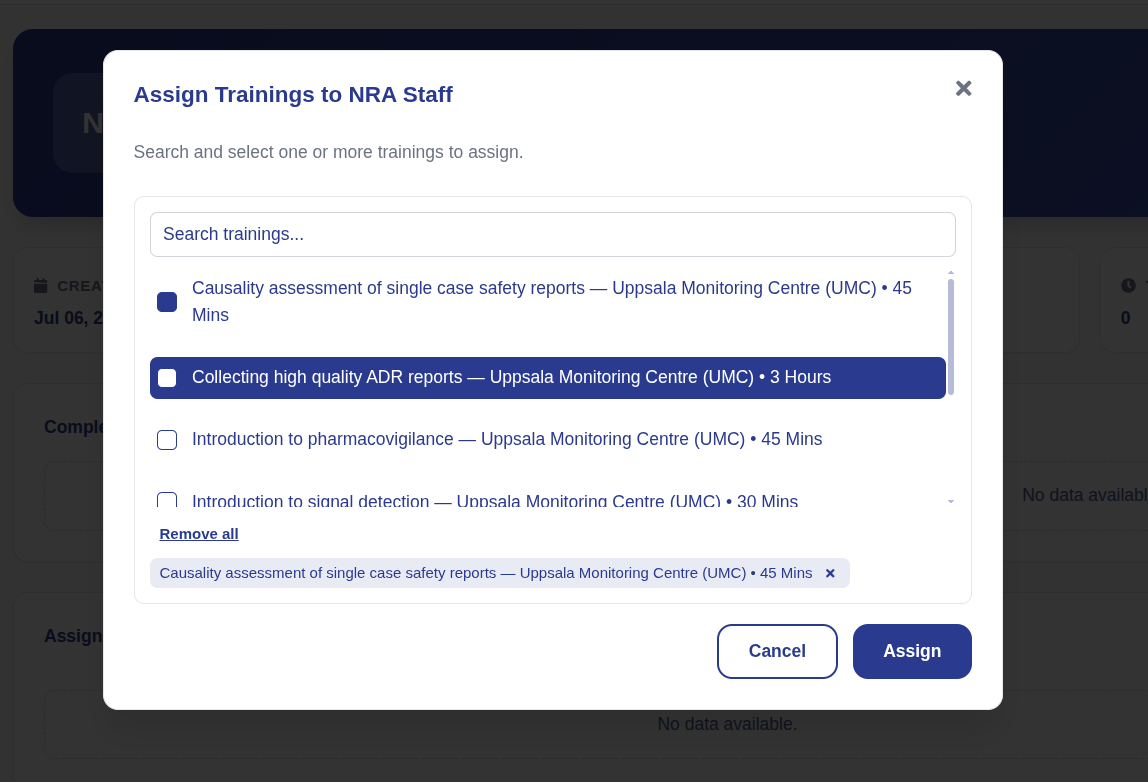
- Select one or more trainings from the list.
- Click Assign.
Outcome
The assigned member sees the training in their learning queue, and you can track their progress toward completion.
Review Training Feedback
The story: After your team completes trainings, they leave feedback. You review it to understand what's working.
Goal: Read learner feedback on trainings.
Navigation: Left Navigation → NRA-Specific Training Catalogue
- Click NRA-Specific Training Catalogue in the left navigation.
- Find the training — each row shows Name, mode, and user satisfaction.
- Click the star rating in the User Satisfaction column.
- Read the listed comments and ratings.
Outcome
You have a clear read on training quality and can act on the feedback.
Track Completion & View the Regulatory Passport
The story: You confirm your team's completions are recorded correctly and view each member's cumulative learning record.
Goal: Verify completions and view a member's learning record.
Navigation: Left Navigation → Users
- Click Users in the left navigation.
- Click a team member to view their learning record: trainings completed, dates, and competencies achieved.
- Confirm recent completions are reflected accurately.
- Click Regulatory Passport to see the summary.
Outcome
You can vouch for your team's verified record, and each member has an up-to-date Regulatory Passport.
Manage Pending Requests
The story: Requests from your team — access, training, approvals — collect in a queue. You work through them so nothing sits unresolved.
Goal: Clear your pending-request queue.
Navigation: Left Navigation → Pending Requests
- Click Pending Requests in the left navigation.
- Open each item to review who requested what, and why.
- Click Approve or Reject.
Outcome
The queue is clear, and every requester knows where they stand.
Manage Your Own Profile
The story: Like every user, you keep your own account details accurate.
Goal: Keep your account information current.
Navigation: Top-right avatar menu → Profile
- Open the Profile page.
- Update fields such as full name, country, language, manager, competency role, about / bio, and profile photo.
- Click Save Changes.
Outcome
Your profile information is current and correctly reflected.