NRA Staff
As an NRA Staff user, the platform is where you complete the training assigned to you, prove it, request trainings you need, and track your own growth through your Regulatory Passport. The tasks below cover your full journey as a learner during the pilot.
Start an Assigned Training
The story: Your Manager has assigned trainings to you. Now you open your queue and begin learning.
Goal: Begin a training that has been assigned to you.
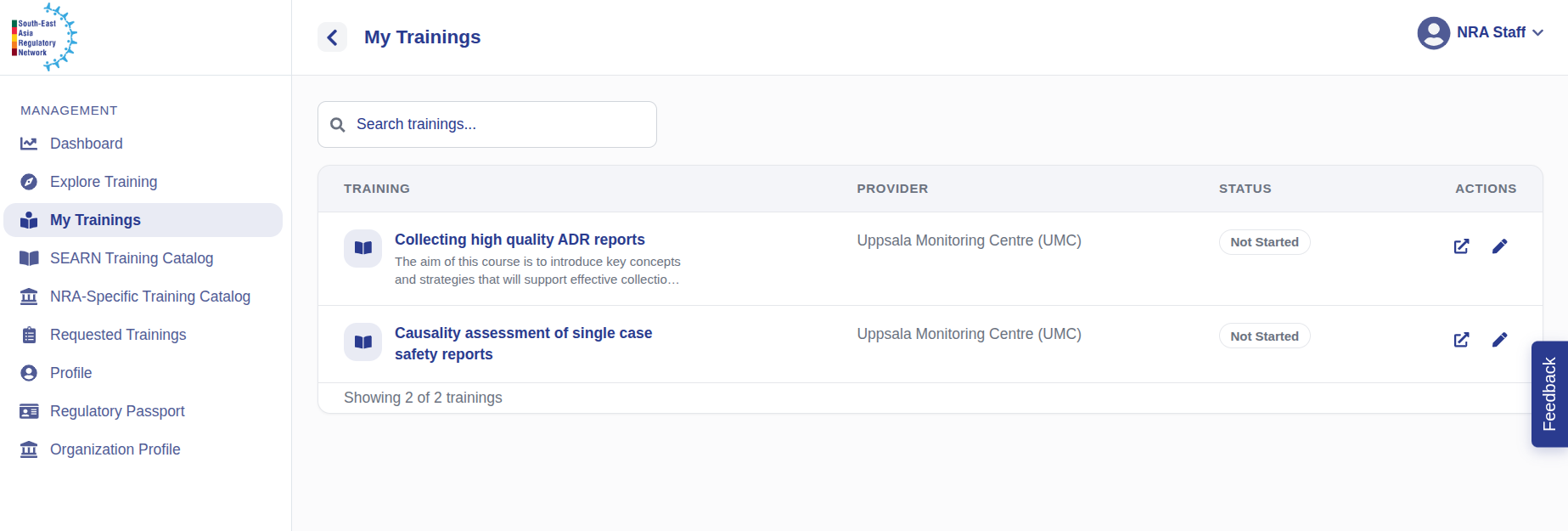
Navigation: Left Navigation → My Training
- Click My Training to see the trainings assigned by your NRA Manager.
- Click the access-link icon on a training to start it.
- On first access, confirm the prompt to begin.
Outcome
The training opens and you are underway, with its status now showing as In Progress.
Complete a Training & Upload Your Certificate
The story: You have worked through a training and now need to mark it complete, upload proof, and share how it went.
Goal: Record a training as completed with proof attached.
Navigation: Left Navigation → My Training
- Click My Training and find the in-progress training in the list.
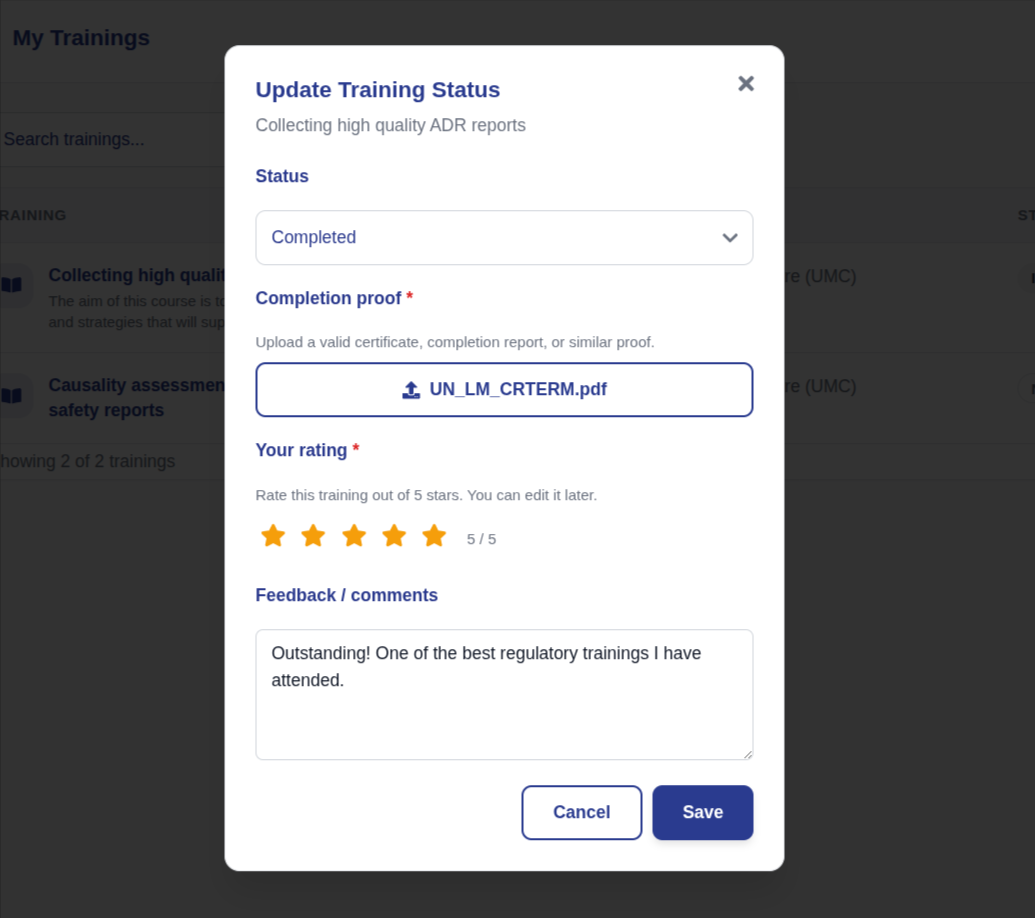
- Click the pencil icon to change its status.
- Set the status to Completed and upload valid completion proof (for example, a certificate).
- Give a star rating and add any feedback or comments.
- Click Save.
What each field means:
Completion proof: a certificate or similar document that shows you finished the training.
Star rating & feedback: your honest rating and comments — this is exactly the pilot feedback the team needs.
Outcome
The training is recorded as completed with proof attached, and it flows into your learning record and Regulatory Passport.
Request Access to an Existing Training
The story: You spot a training relevant to your role that hasn't been assigned to you, and you request access to it.
Goal: Ask for access to a training already in a catalogue.
Navigation: Left Navigation → SEARN or NRA-Specific Training Catalogue
- Open the SEARN Training Catalogue or NRA-Specific Training Catalogue.
- Filter and search for a training relevant to your role.
- Click Request Access and confirm in the popup.
Outcome
Your request is sent to the NRA Manager for approval, and you can track its status.
Request a New Training or Flag Interest
The story: You need a training that isn't in any catalogue — or you want to add your voice to one a colleague already requested.
Goal: Signal demand for a training that doesn't exist yet.
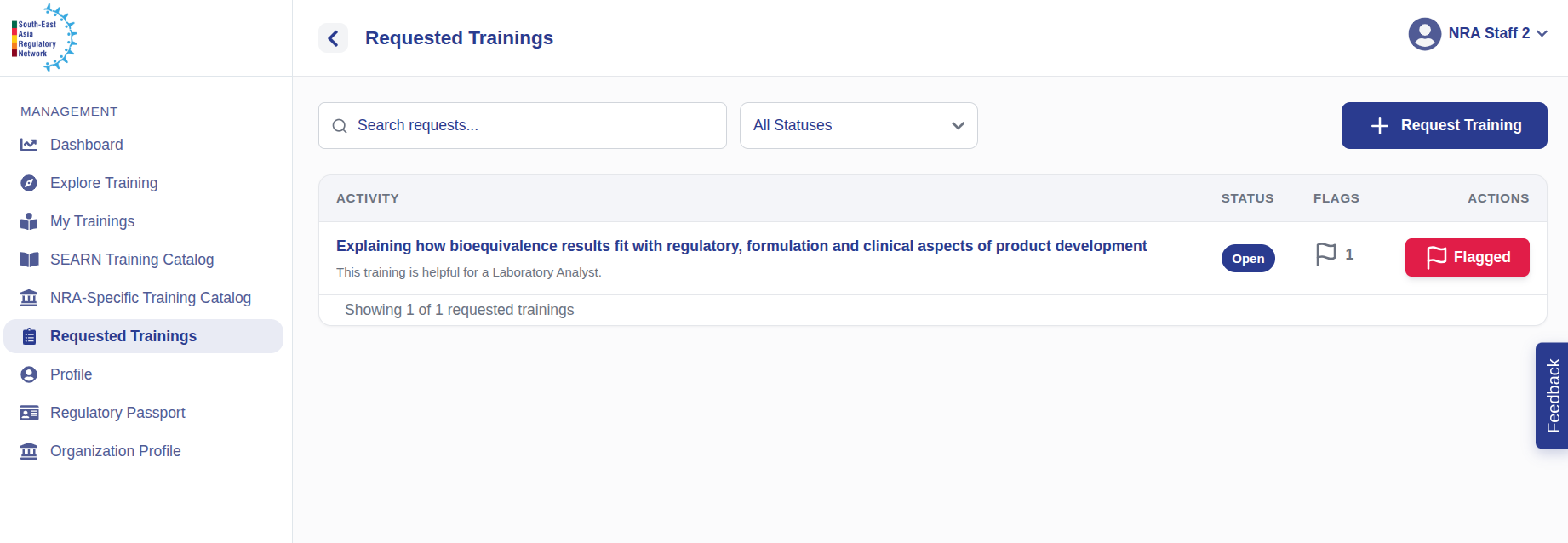
Navigation: Left Navigation → Requested Trainings
- Click Requested Trainings to see trainings already requested.
-
If the one you want is listed, click Flag Interest to add your support — this signals demand to the NRA Admin.
-
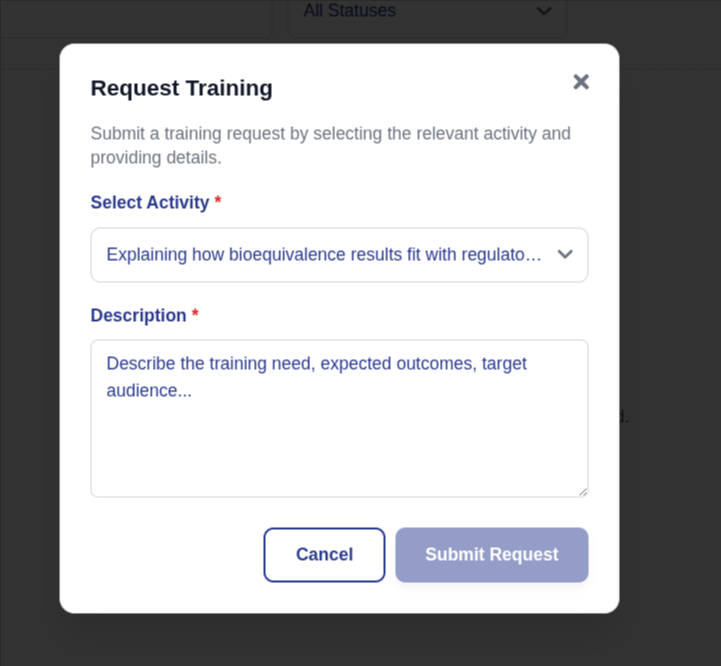
If it isn't listed, click Request Training, select the activity, write a description, and click Submit Request.
Flagging interest matters
The more people flag a training, the higher it rises as a priority for the Admin and Secretariat.
Outcome
A new training request is created (or your interest is added) and becomes visible to the NRA Admin for consideration.
Track Your Own Growth (Regulatory Passport)
The story: You want to see how far you've come — which competencies, activities and domains you've completed, and your overall progress.
Goal: View and download your competency record.
Navigation: Left Navigation → Regulatory Passport
- Click Regulatory Passport.
- Review the competencies, activities, domains and sub-domains you've completed, along with your overall progress.
- Optionally, download your Regulatory Passport as a record to keep.
Outcome
You have a clear, verifiable view of your competency growth and a downloadable copy to keep.
Find Your Organization's Contacts
The story: When you hit an issue or have a question, you need to know who represents your authority on the platform.
Goal: See your organization's key contacts.
Navigation: Left Navigation → Organization Profile
- Click Organization Profile.
- View the organization's details: name, website, contact email, and the list of admin users.
Outcome
You know the key contacts to reach during any issue or query.
Manage Your Own Profile
The story: Like every user, you keep your own account details accurate.
Goal: Keep your account information current.
Navigation: Top-right avatar menu → Profile
- Open the Profile page.
- Update fields such as full name, country, language, manager, competency role, about / bio, and profile photo.
- Click Save Changes.
Outcome
Your profile information is current and correctly reflected.