Training Provider
As a Training Provider, you publish and manage trainings for the SEARN network. After you log in, use the left Management menu for the tasks below.
Use the Dashboard
The story: You open the platform and want a quick picture of your published trainings and how learners are doing.
Goal: Review dashboard metrics and your top trainings.
Navigation: Left Navigation → Dashboard
- Click Dashboard.
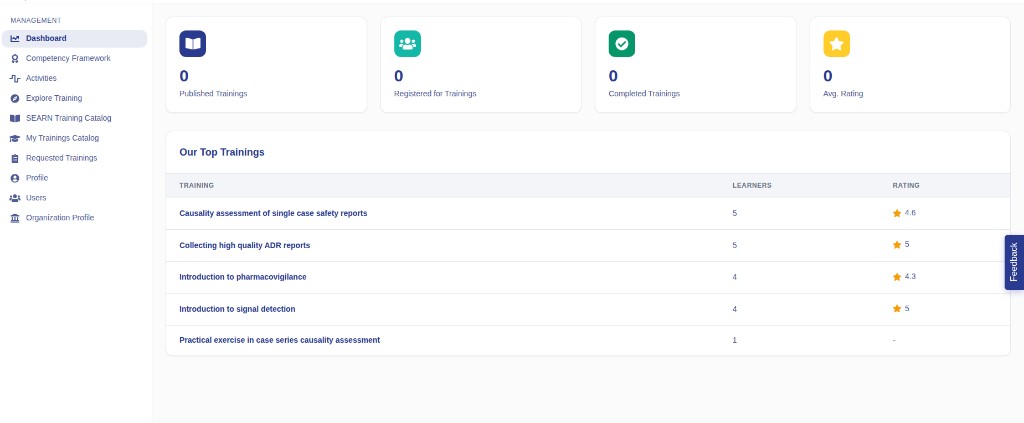
- Review the summary cards: Published Trainings, Registered for Trainings, Completed Trainings, and Avg. Rating.
- Scroll to Our Top Trainings to see trainings with learner counts and ratings.
Outcome
You can see how your trainings are performing at a glance.
View the Competency Framework
The story: Before you map or design trainings, you check the competency frameworks used by the network.
Goal: Open and view WHO Global and SEARN competency frameworks.
Navigation: Left Navigation → Competency Framework
- Click Competency Framework.
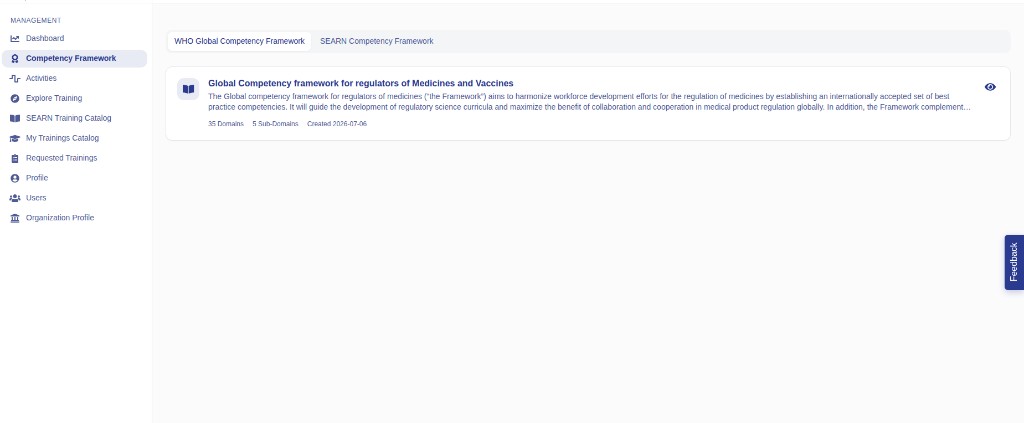
- Switch between WHO Global Competency Framework and SEARN Competency Framework using the tabs.
- Open a framework card (eye icon) when you need to read domains and details.
Outcome
You know which frameworks exist so you can map trainings correctly later.
Browse Activities
The story: You need to find activities in the framework — often before exploring or creating training.
Goal: Search and filter activities by framework, role, domain, and related fields.
Navigation: Left Navigation → Activities
- Click Activities.
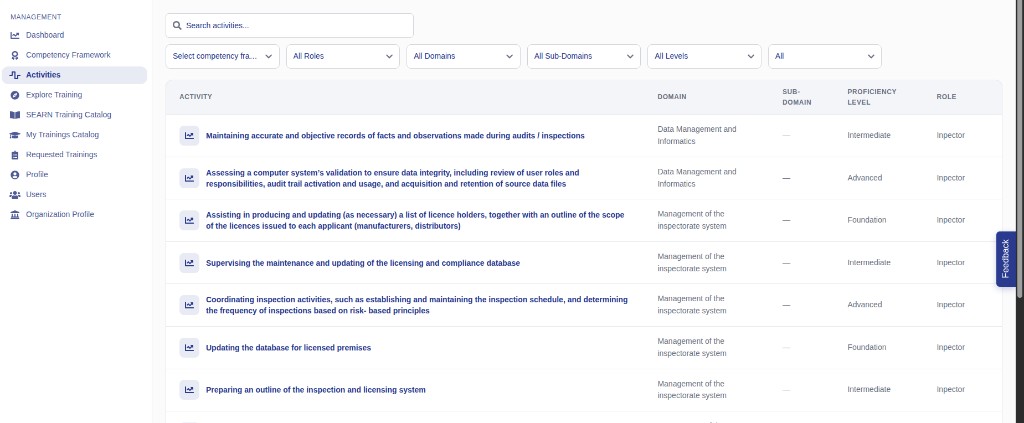
- Use Search activities... to find an activity by keywords.
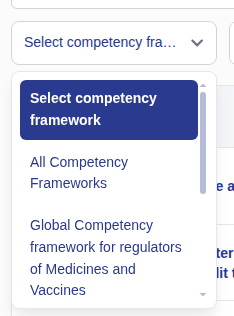
- Narrow the list with the filters:
- Competency framework — which framework the activities belong to
- Role — for example Inspector or Reviewer
- Domain and Sub-Domain — competency areas
- Level — proficiency level
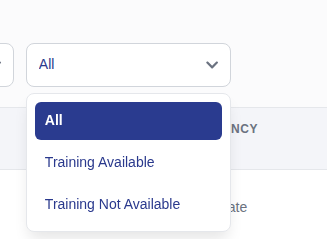
- Training Available / Training Not Available — whether a training already exists for the activity
Outcome
You can locate the activities that matter for your catalogue and for Explore Training.
Explore Training
The story: You want to see which activities and trainings exist for a competency role — and request a new training when coverage is missing.
Goal: Choose a role, browse activities and trainings with filters, preview a training, or request training when none exist.
Navigation: Left Navigation → Explore Training
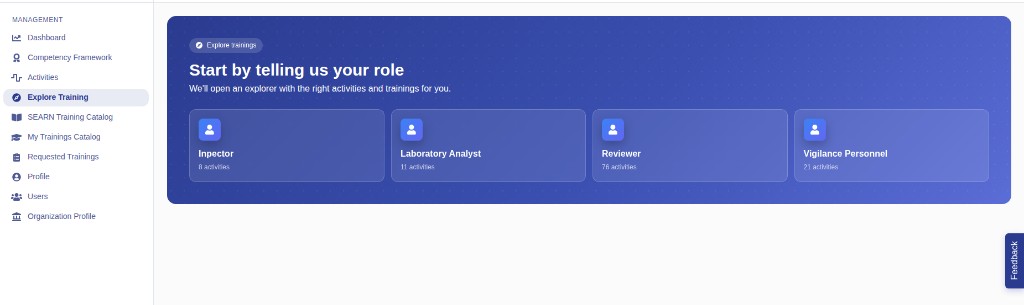
1. Choose a role
- Click Explore Training.
- On Start by telling us your role, pick a role card (for example Inspector, Laboratory Analyst, Reviewer, or Vigilance Personnel). Each card shows how many activities that role has.
2. Search and filter in the explorer
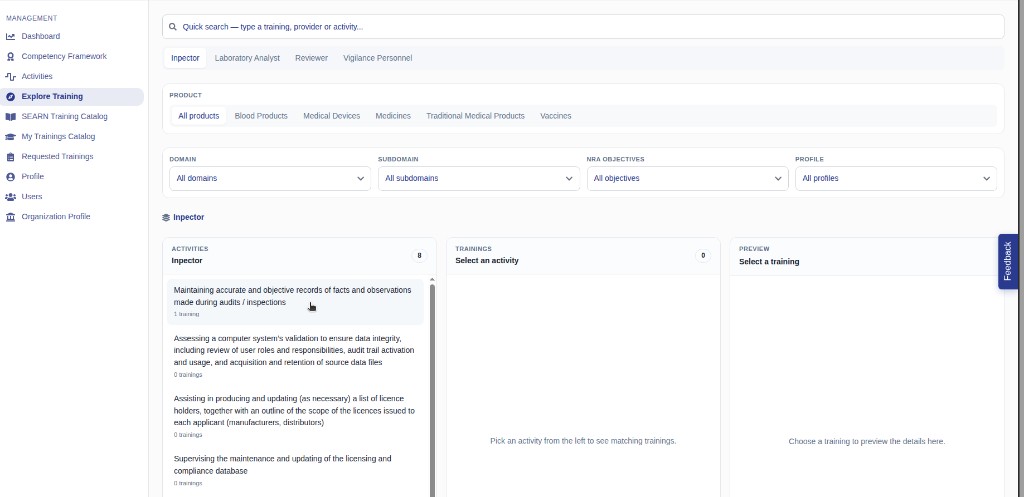
After you pick a role, the explorer opens with three columns: Activities, Trainings, and Preview.
- Use Quick search to type a training, provider, or activity name.
- Switch role tabs at the top if you need another role without going back.
- Filter by Product (for example All products, Medicines, Vaccines).
- Use the dropdowns: Domain, Subdomain, NRA Objectives, and Profile.
3. Select an activity and a training
- In the Activities column, click an activity. The count of matching trainings is shown under each activity.
- In the Trainings column, select a training when any are listed.
- The Preview column shows details for the training you selected.
4. Request training when none exist
- If Trainings shows No training available for this activity, click Request Training at the bottom of that column.
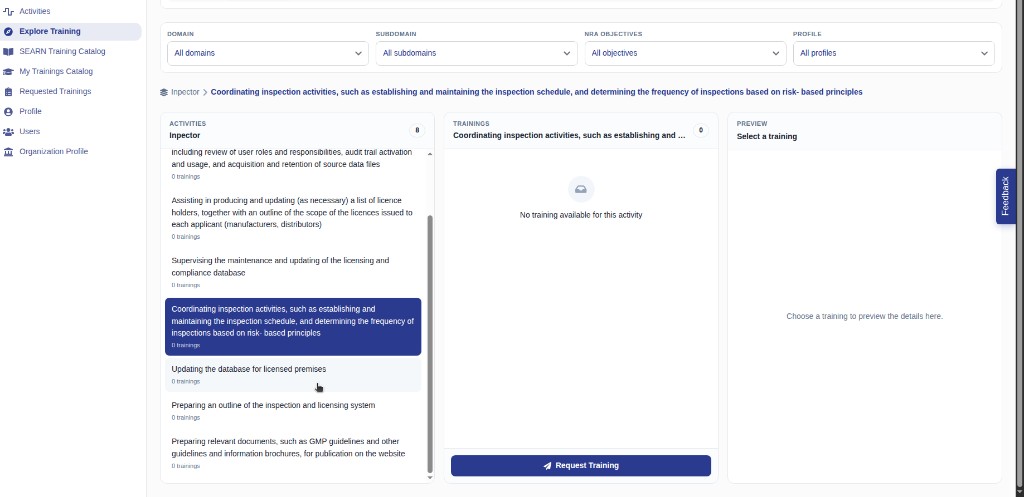
- In the Request Training popup, choose the Activity (and description if asked), then submit.
Outcome
You have explored trainings for a role, previewed a match, or submitted a request when coverage is missing.
Browse the SEARN Training Catalogue
The story: You want to see trainings published across the network (including other providers).
Goal: Search and filter the SEARN Training Catalogue.
Navigation: Left Navigation → SEARN Training Catalog
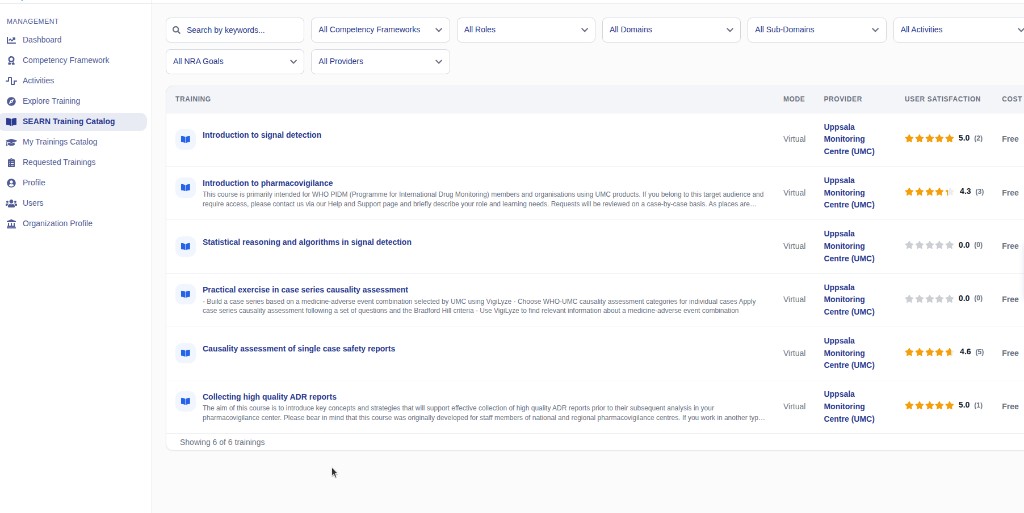
- Click SEARN Training Catalog.
- Use Search by keywords... and the filters (framework, role, domain, sub-domain, activities, NRA goals, providers).
- Review each row: training name, mode, provider, user satisfaction, and cost.
Outcome
You can see what trainings already exist on the network.
Manage My Trainings Catalog
The story: Your main job as a Training Provider is to create and maintain the trainings your organization offers.
Goal: View your catalogue and create a new training.
Navigation: Left Navigation → My Trainings Catalog → + Create Training
- Click My Trainings Catalog.
- Search or filter your existing trainings. Use the pencil icon to edit or the trash icon to delete.
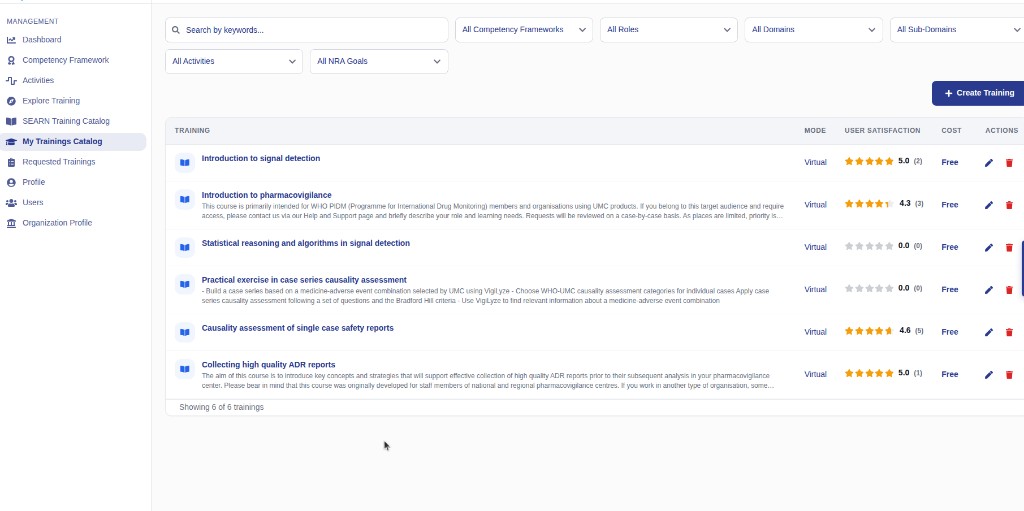
- Click + Create Training.
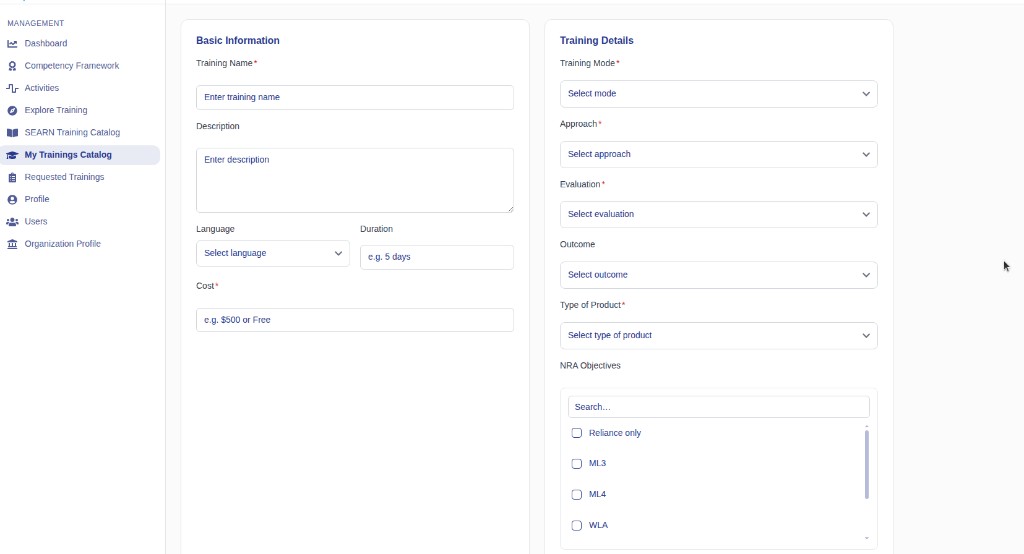
- Fill in Basic Information (training name, description, language, duration, cost) and Training Details (mode, approach, evaluation, outcome, type of product, NRA objectives).
- Complete Registration By (URL or email), then map Mapped Competencies and Mapped Activities (required).
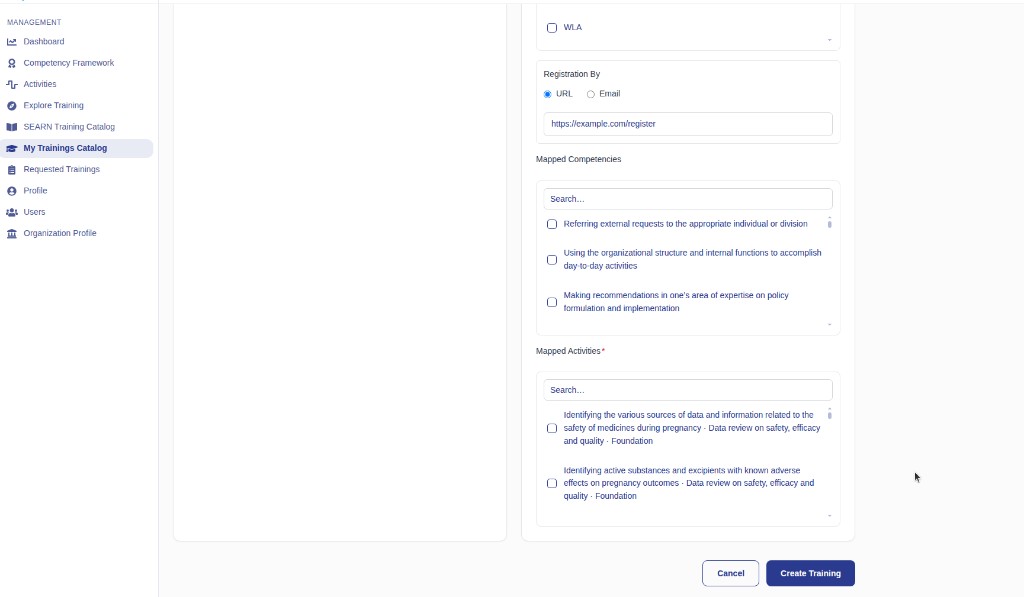
- Click Create Training (or Cancel to discard).
Outcome
The training is added to My Trainings Catalog and can appear in the SEARN catalogue for the network.
Work with Requested Trainings
The story: The network signals demand for trainings that do not exist yet — you review those requests and can flag interest or submit your own.
Goal: Search requests, filter by status, flag interest, or request a new training.
Navigation: Left Navigation → Requested Trainings
- Click Requested Trainings.
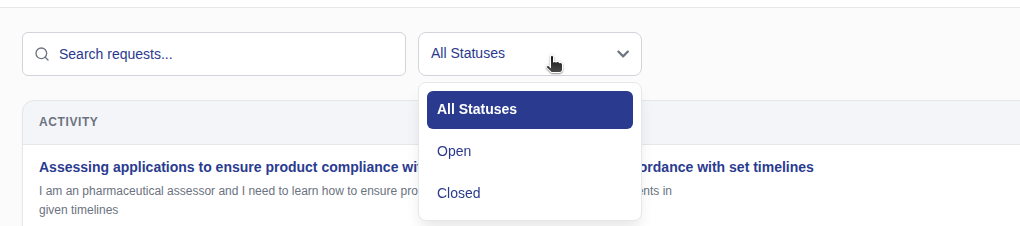
- Use Search requests... and the Status filter (All Statuses, Open, Closed).
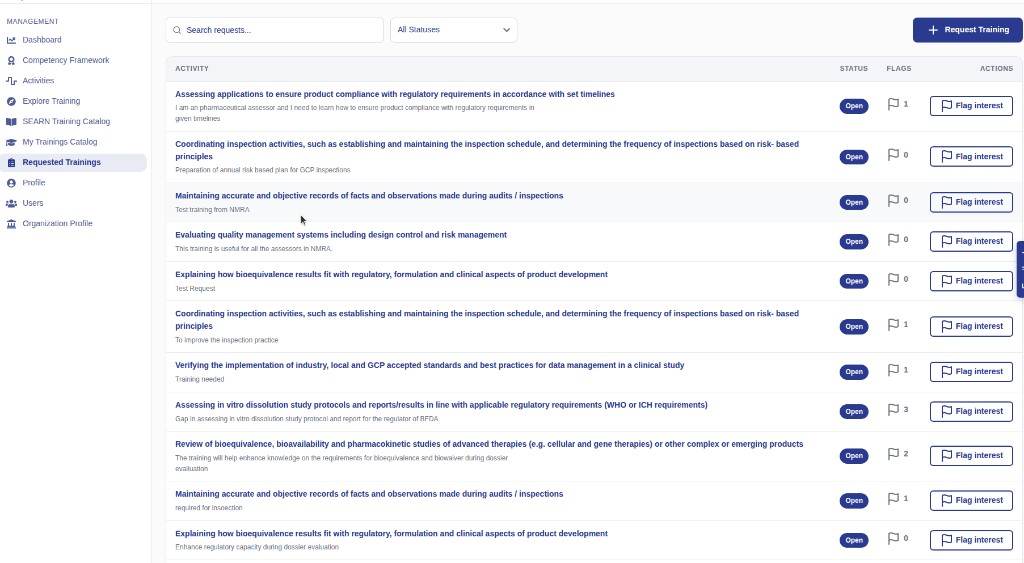
- On a request row, click Flag interest to show demand for that activity.
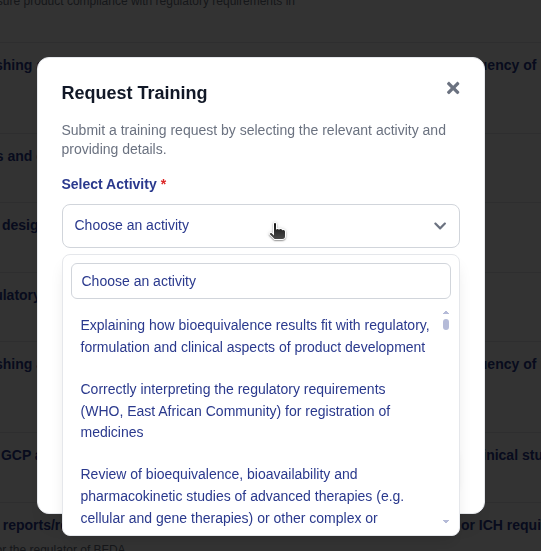
- To submit a new request, click + Request Training, choose an Activity, add details, and submit.
Flagging interest matters
Higher flag counts help the network see which missing trainings are most needed.
Outcome
You have reviewed demand signals and either flagged interest or submitted a training request.
Manage your own Profile
The story: You keep your personal details accurate so others see the right name, country, language, and about text.
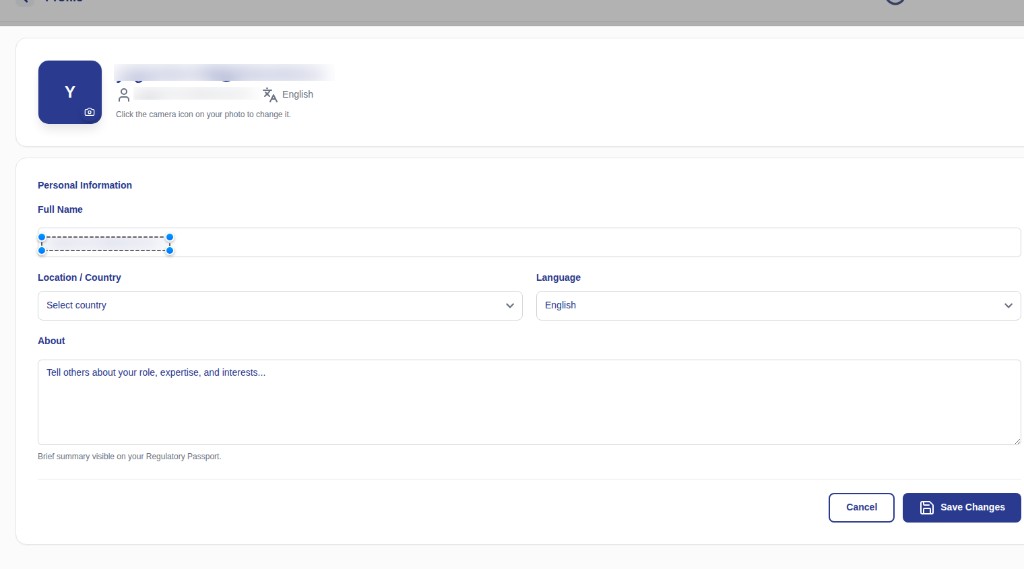
Goal: Update your profile photo and personal information.
Navigation: Left Navigation → Profile (or top-right avatar → Profile)
- Click Profile.
- Click the camera icon on your photo to change it.
- Under Personal Information, update:
- Full Name
- Location / Country
- Language
- About (short summary; also used on regulatory passport views where shown)
- Click Save Changes (or Cancel to discard).
Outcome
Your profile details are saved and up to date.
Manage Users
The story: People in your Training Provider organization need access — you add them, update names/emails, or remove access.
Goal: Search, add, edit, and delete users for your organization.
Navigation: Left Navigation → Users
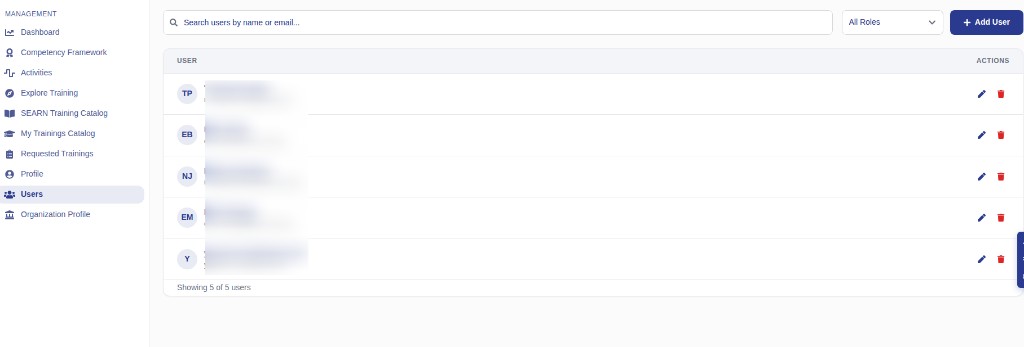
- Click Users.
- Use Search users by name or email... and the All Roles filter if needed.
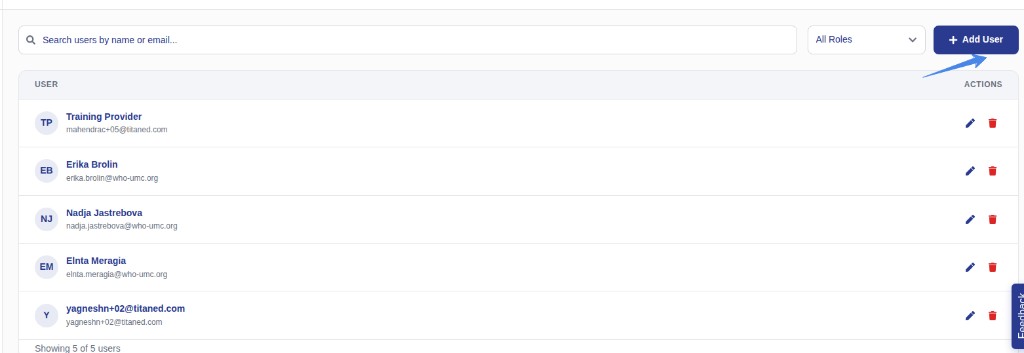
- Each row shows the user (avatar, name, email) and Actions: pencil (Edit) and trash (Delete).
Edit or delete a user
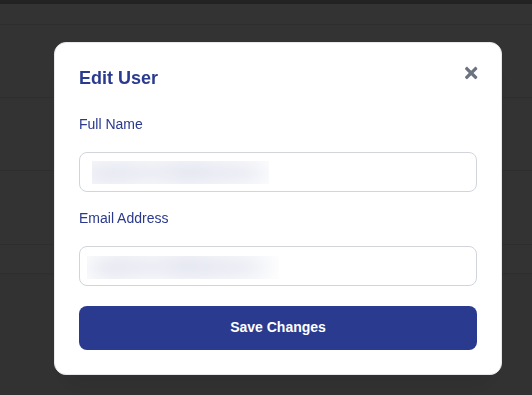
- Click the pencil icon to open Edit User.
- Update Full Name and/or Email Address, then click Save Changes.
- Click the trash icon to delete a user, and confirm when asked.
Add a new user
- Click + Add User.
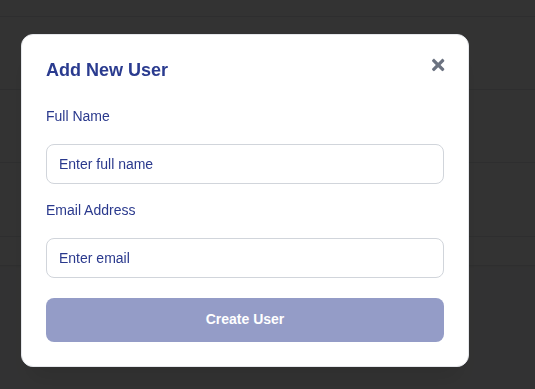
- In Add New User, enter Full Name and Email Address, then click Create User.
Outcome
Your organization’s user list is current — new people can sign in, and removed users no longer have access.
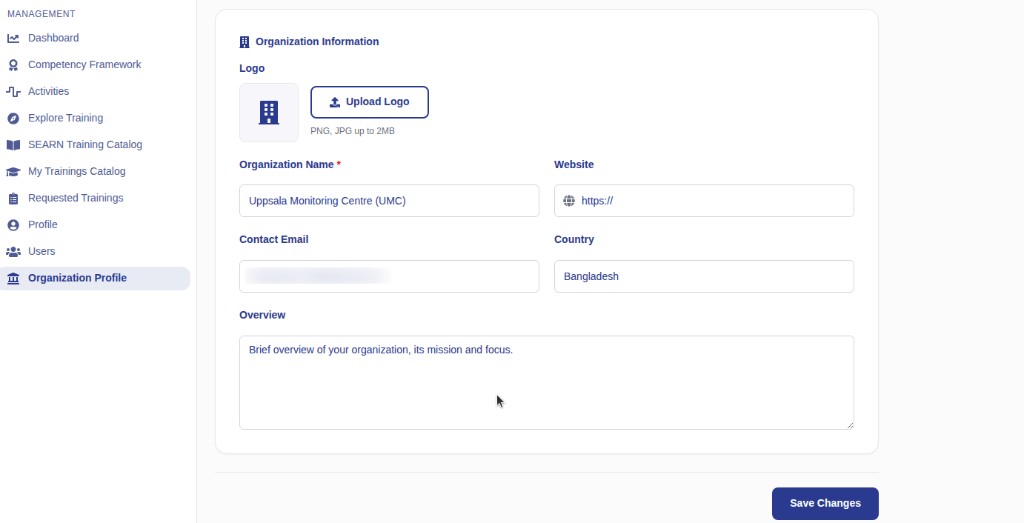
Update Organization Profile
The story: Your Training Provider belongs to one organization — you keep that organization’s public details accurate.
Goal: Edit organization information (logo, name, website, contact, country, overview).
Navigation: Left Navigation → Organization Profile
- Click Organization Profile.
- Under Organization Information:
- Upload Logo (PNG or JPG, up to 2MB)
- Organization Name (required)
- Website
- Contact Email
- Country
- Overview — brief mission and focus
- Click Save Changes.
Outcome
The organization profile for your Training Provider is updated and saved.